


Licence details, welcome bonus and actual payment methods available to users in Switzerland
SlotsVader Casino Information
Platform Details
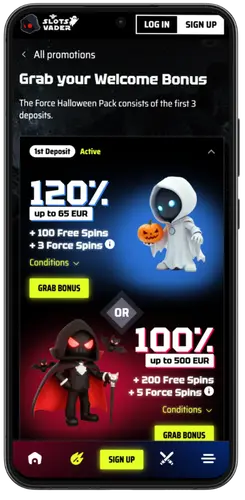
Casino DataThe Force Welcome Pack
Choose Your SideSlotsVader Deposits in Switzerland
CHF Payment Methods and Deposit Limits
Switzerland BankingSlotsVader login and registration guide
An account takes a few minutes to open, and the steps are the same on desktop and in a mobile browser. Type your personal details exactly as they appear on your ID from the very first form. The casino checks them before the first withdrawal, and any mismatch holds the payout until it is corrected.
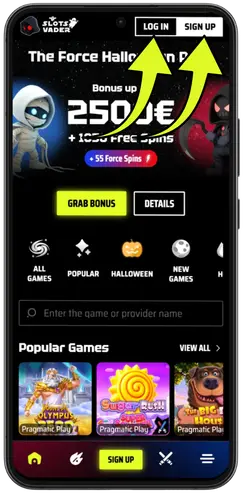
- Visit the casino website to register or log in to your account
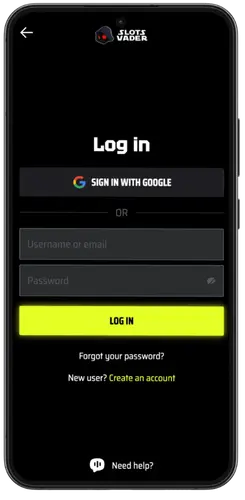
If you already have an account, click the “Log In” button and enter your email and password; if not, click “Sign Up.”
- Registration
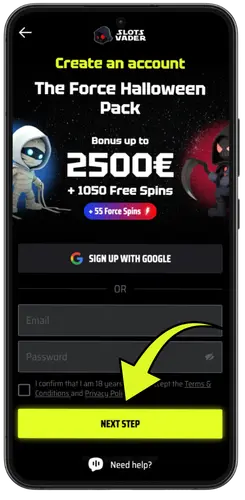
Enter your email and password, then click the “Next step” button.
- Second stage of registration
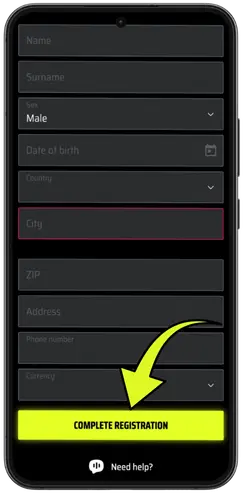
Enter your first name, last name, gender, date of birth, country, city, address, phone number, and currency, then click the “Complete registration” button.
- Make a deposit
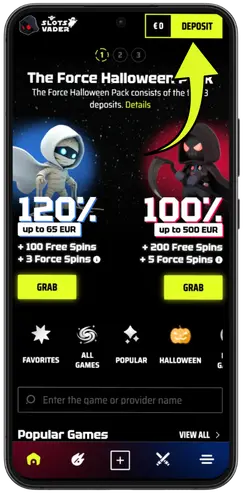
To start playing, top up your account balance by clicking the “Deposit” button.
Most sign-in problems come from a typo in the email or caps lock left on, so check both before you reset the password. If the SlotsVader login still fails after that, contact live chat or email support, which both run around the clock and can restore account access.
Casino App
The mobile version installs from the official site rather than from Google Play or the App Store, and it keeps everything you use on desktop: the full game lobby, cashier, bonuses, live chat and loyalty programme. On a computer, the install buttons open a QR code that sends the setup straight to your phone. On the phone itself, look for them in the side menu, just above the live chat button.
- Open the side menu: in your phone’s browser, tap the three-line icon in the bottom right corner of the navigation bar. The menu slides over the lobby and lists every game category along with your account options.
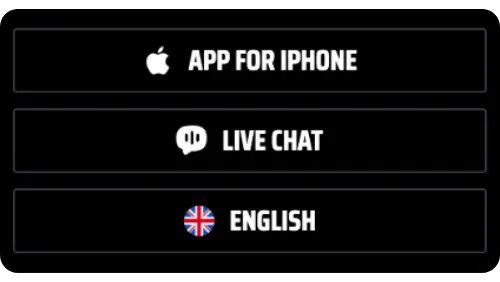
- Pick your device: scroll to the end of the menu, where the app button sits just above Live Chat. The site recognises your phone, so an iPhone shows only App for iPhone, and a tap opens the steps for that system.
- Install the file on Android: confirm the download, open the file from the notification bar and tap Install. If the phone blocks apps from unknown sources, allow it once in the settings, and later updates will not ask again.
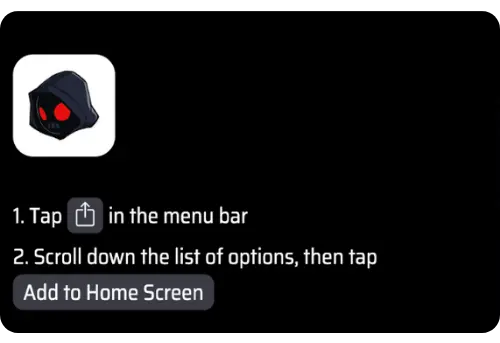
- Add the icon on iPhone: open the site in Safari, tap the Share icon in the menu bar, scroll down the list of options and choose Add to Home Screen. Even if you usually browse in Chrome, switch to Safari for this step.
- Sign in from the new icon: tap it and log in with your usual email and password, or create an account on the same screen. Your balance, active bonuses and loyalty level load right away, with no second verification.
You stay signed in between sessions, and bonus alerts show up on the lock screen. Slots in the SlotsVader app run in both vertical and horizontal orientation, while HD live dealer tables need a steady 4G or Wi-Fi connection.
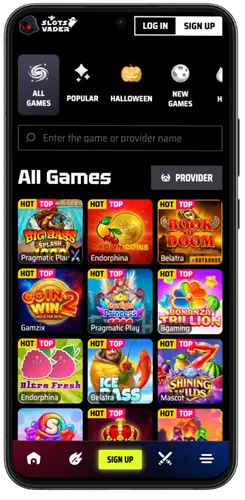
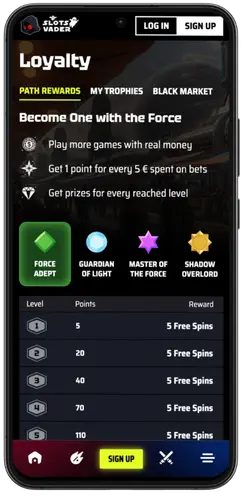
Screenshots of the official website